
Presenting
This page walks through a session from the presenter’s side: create a presentation, add questions, put the presenter screen on the projector and move through the questions while the audience answers.
Create a presentation
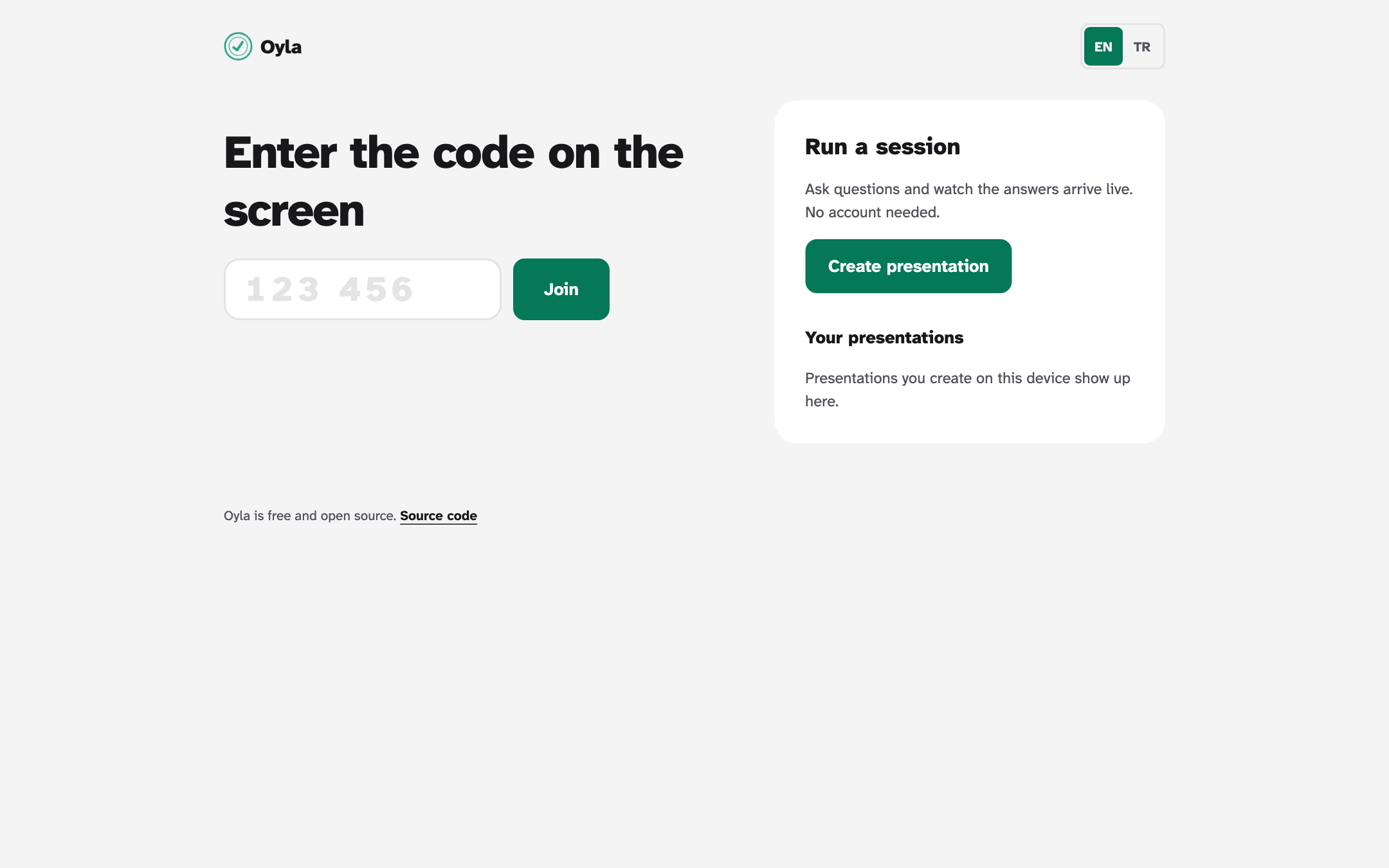
Section titled “Create a presentation”- Open your Oyla server in a browser, for example
http://localhost:3000or your own domain. If you don’t have one yet, see Docker. - Under Run a session, select Create presentation.
- Enter a name (up to 120 characters) and select Create presentation.
If the server owner set a create password, the form also asks for a Server password. Joining and answering never need a password; it only protects creating presentations.
Keep the admin link
Section titled “Keep the admin link”There are no accounts. Creating a presentation gives you an admin link that looks like this:
https://oyla.example.com/edit/AbC123xYz789#key=…The editor shows it once in a Keep this link box. Select Copy admin link, store it somewhere safe, then select I saved it.
- The admin link is the only way back into the presentation. Anyone who has it can edit, present and delete it, so share it only with co-presenters.
- Your browser also remembers the presentation under Your presentations on the start page, with Open and Present buttons. That list lives in this browser only.
- You can copy the link again any time with Copy admin link at the bottom of the editor.
Add questions
Section titled “Add questions”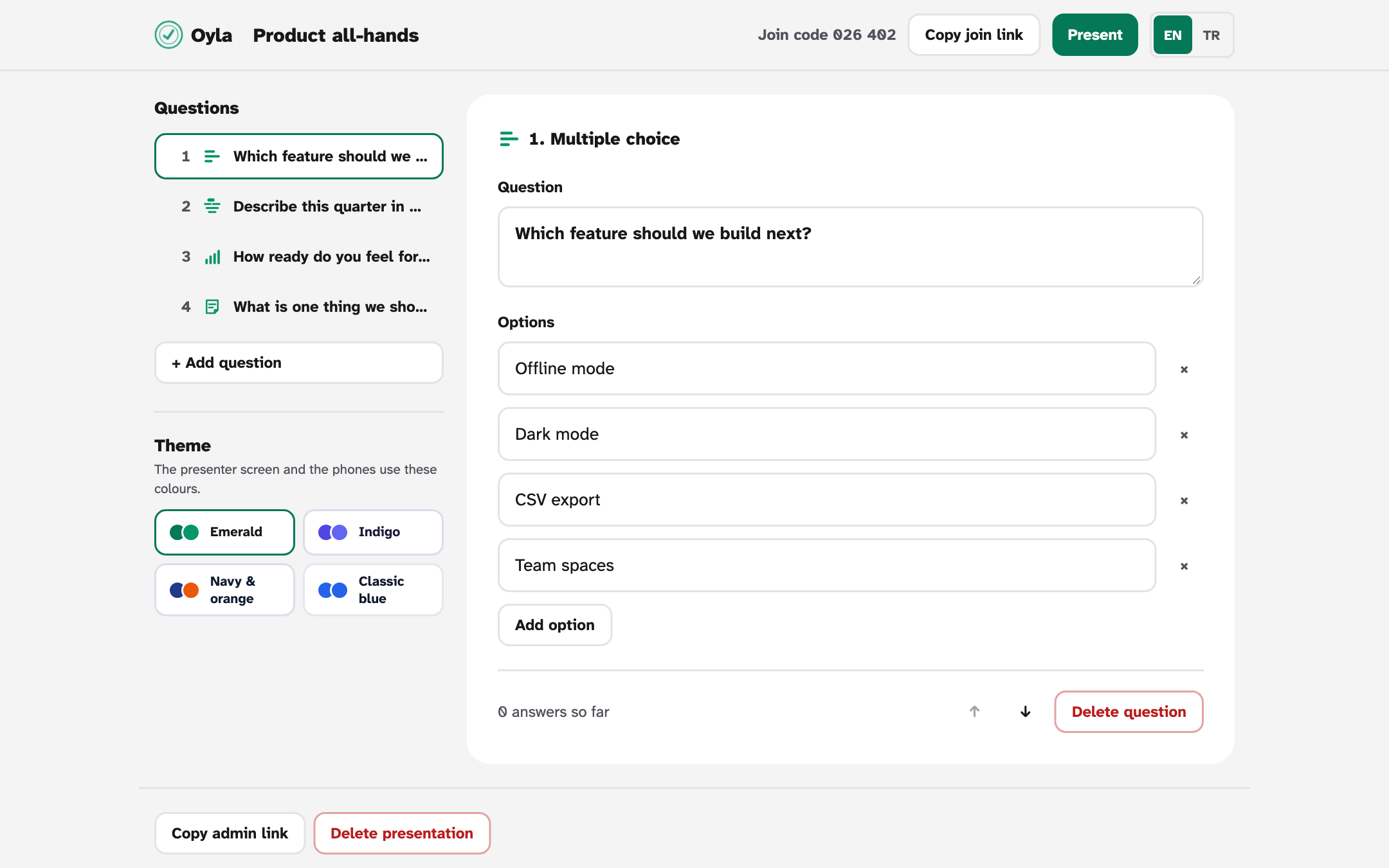
- Select Add question and pick a type under Choose a question type: multiple choice, word cloud, open question or scale. See Question types for what each one does.
- Type your question in the Question field (up to 200 characters).
- Fill in the settings of that type, such as the options of a multiple-choice question.
Changes save on their own shortly after you stop typing; the editor shows Saving… and then Saved. Other things you can do in the editor:
- Rename the presentation by clicking its name in the header.
- Reorder questions with the Move up and Move down arrows.
- Remove a question with Delete question. The button asks you to click again to confirm.
- See how many answers a question has (for example, “3 answers so far”) and clear them with Reset results.
A presentation can have up to 50 questions.
Choose a theme
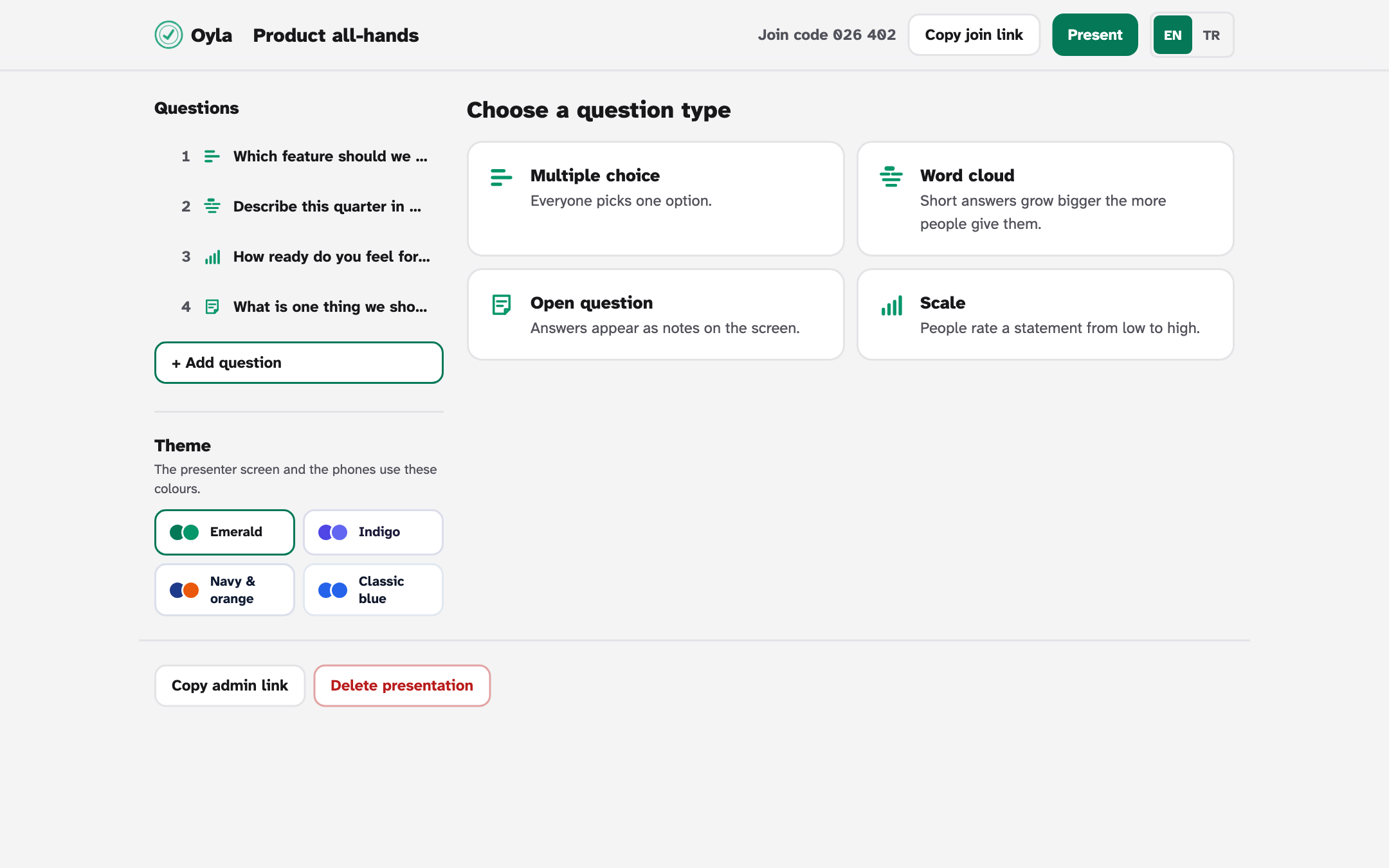
Section titled “Choose a theme”Each presentation has a colour theme. In the editor, the Theme section shows four swatches: Emerald (the default), Indigo, Navy & orange and Classic blue. Select one to use it.
The presenter screen and every participant’s phone use the presentation’s theme. If you change it during a session, connected phones switch to the new colours right away. Light and dark mode still follow each device’s own setting, and pages outside a presentation, such as the start page, use the default theme.
Present
Section titled “Present”Select Present in the editor header (it is available once the presentation has a question). The presenter screen opens and, if no question is active yet, starts with the first one. Put this window on the projector.
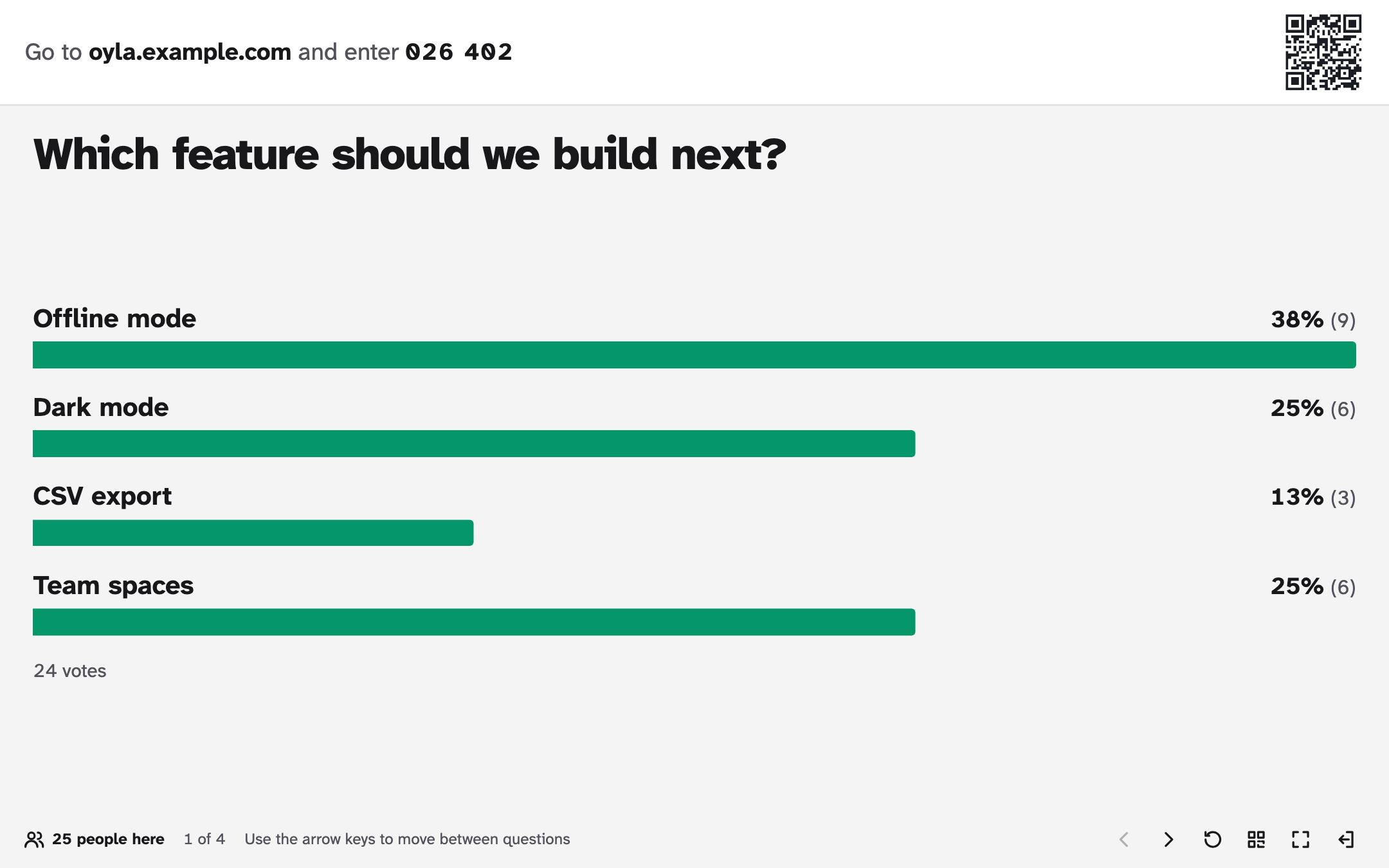
- The top bar always shows Go to host and enter code and a QR code, so latecomers can
join at any point. The host is the address you opened the presenter screen on. If that is
localhost, open Oyla with an address phones can reach instead, such as your domain or your computer’s address on the local network. - The active question and its results fill the middle. Results update as answers arrive.
- The bottom bar shows how many people are connected (for example, “25 people here”) and where you are (“1 of 4”).
The buttons at the bottom right are Previous question, Next question, Reset results, Show join instructions, Full screen and Back to editor.
Keyboard shortcuts
Section titled “Keyboard shortcuts”| Key | Action |
|---|---|
| →, Page Down or Space | Next question |
| ← or Page Up | Previous question |
| F | Full screen on and off |
| I | Show or hide the join instructions |
| Esc | Hide the join instructions |
Most presentation clickers send Page Up and Page Down, so they work too.
Join instructions
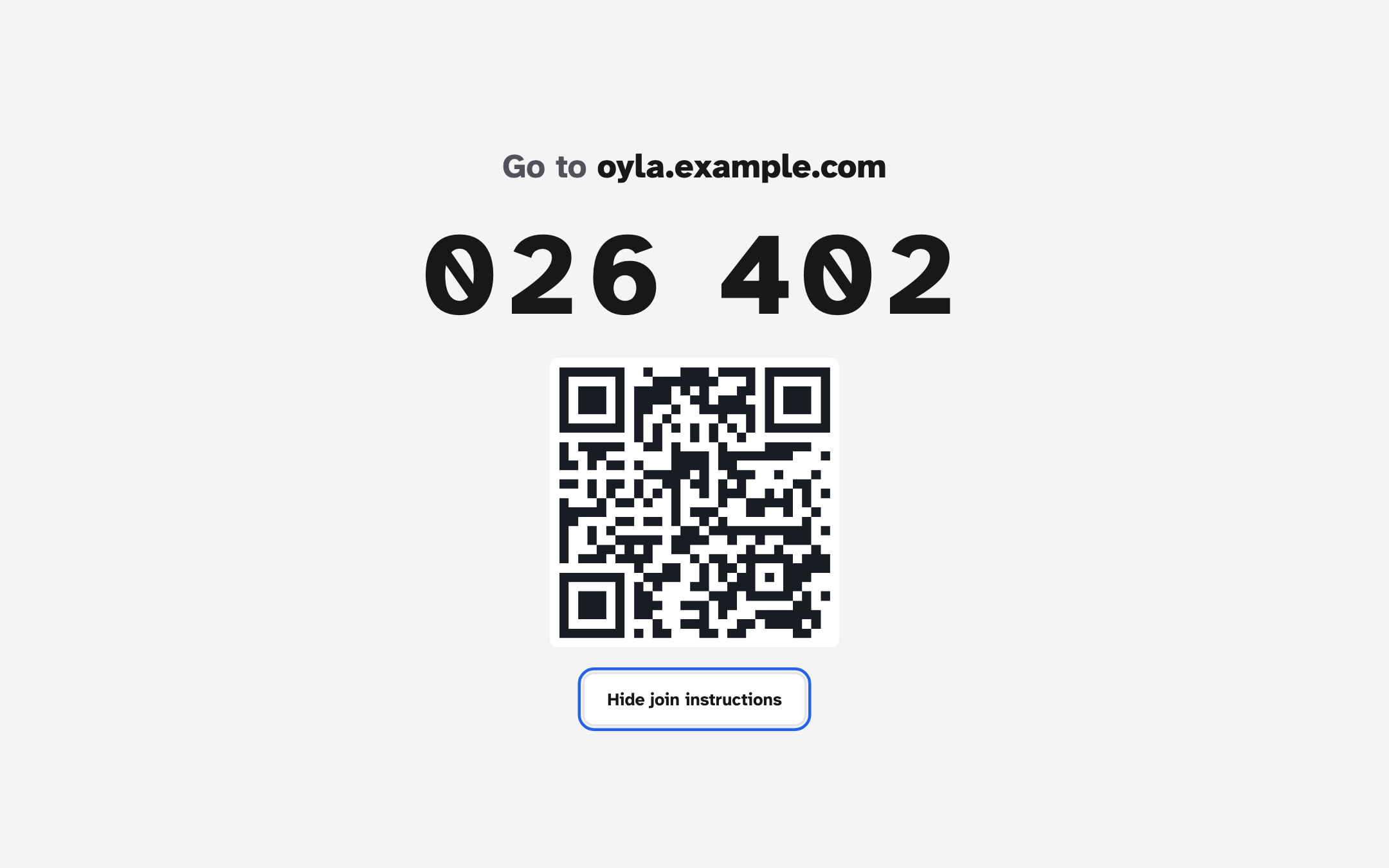
Section titled “Join instructions”Press I, click the QR code in the top bar or select Show join instructions to show the host, the join code and a large QR code across the whole screen. This is a good first slide while people find their seats. Hide join instructions or Esc closes it.
Reset results
Section titled “Reset results”Reset results on the presenter screen deletes every answer to the active question; the button of the same name in the editor does it for the selected question. Phones that had answered get the form back and can answer again. Use it after a test run.
Change questions during a session
Section titled “Change questions during a session”You can keep the editor open in another tab or window while presenting.
- Editing a question never deletes its answers. If you change the active question, phones get the new version right away.
- Renaming or adding multiple-choice options keeps the existing votes. Votes for an option you remove no longer count.
- If you change the range of a scale, ratings outside the new range no longer count.
- Renaming the presentation or changing its theme reaches connected phones right away too.
Leave and come back
Section titled “Leave and come back”Closing the presenter screen does not stop the session. The active question stays active and phones keep showing it, so you can switch to slides and come back. The server stores the active question, so a server restart resumes at the same place.
To present from another computer, open the admin link there and select Present.
Delete a presentation
Section titled “Delete a presentation”Select Delete presentation at the bottom of the editor and click again to confirm. This removes the presentation, its questions and all answers. Connected phones see This presentation has ended.
Servers also delete presentations nobody has used for a while: 30 days by default. Opening,
editing or presenting a presentation, and people joining or answering, all count as use. See
OYLA_RETENTION_DAYS.