
Joining
Participants need a browser and the join code from the screen. There is no app to install, no account and no name to enter.
Join a presentation
Section titled “Join a presentation”Use one of these:
- Type the code. Open the address shown on the screen (for example
oyla.example.com), type the 6-digit code under Enter the code on the screen and tap Join. - Scan the QR code on the presenter screen. It opens the presentation directly.
- Open a join link. The presenter can share a link such as
https://oyla.example.com/join/859847with Copy join link in the editor.
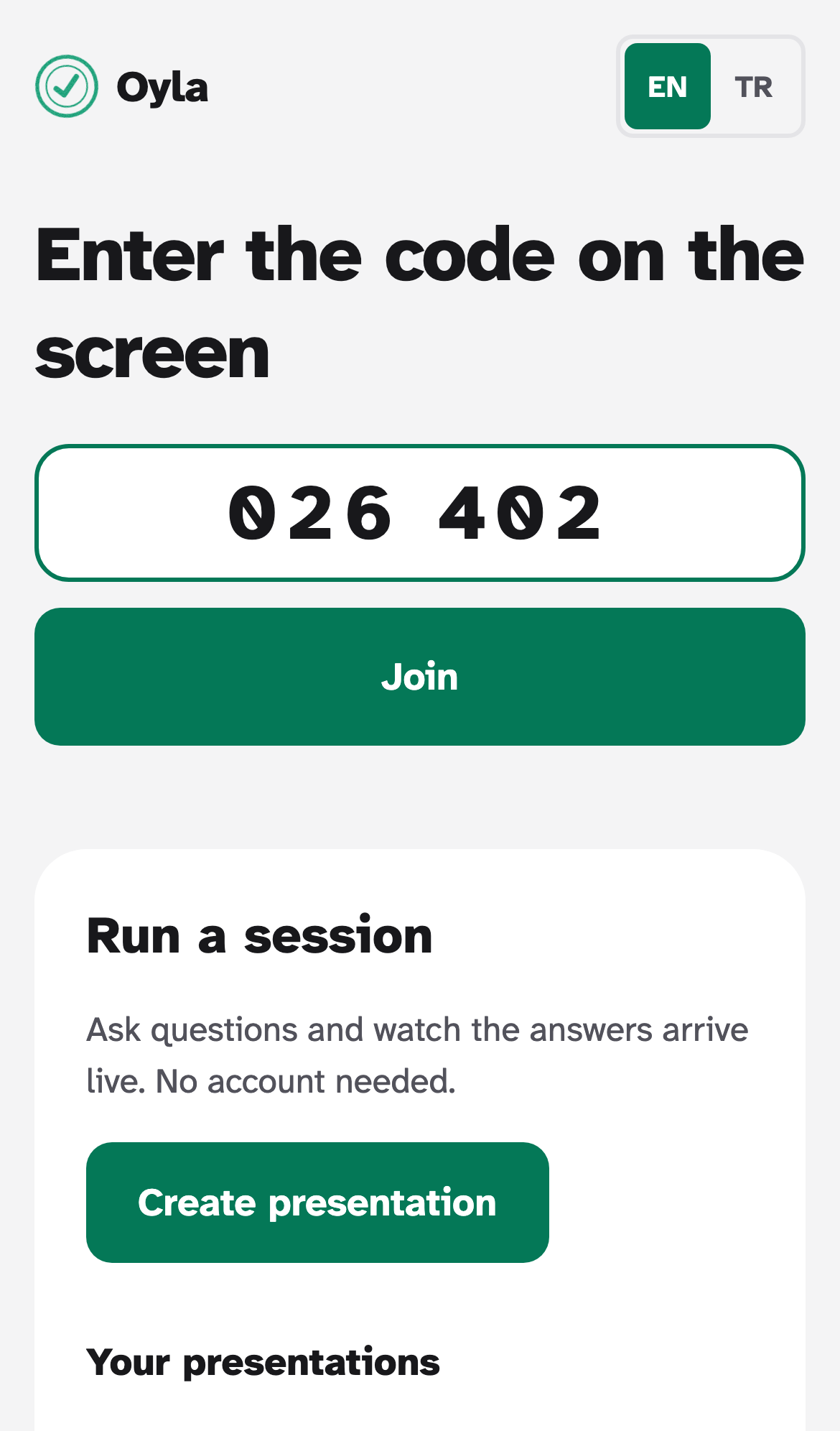
If the code is wrong, the phone shows Code not found with an Enter another code button.
Answer a question
Section titled “Answer a question”After joining, the phone shows You’re in until the presenter opens a question. From then on it follows the presenter: when the presenter moves to the next question, the phone switches with it.
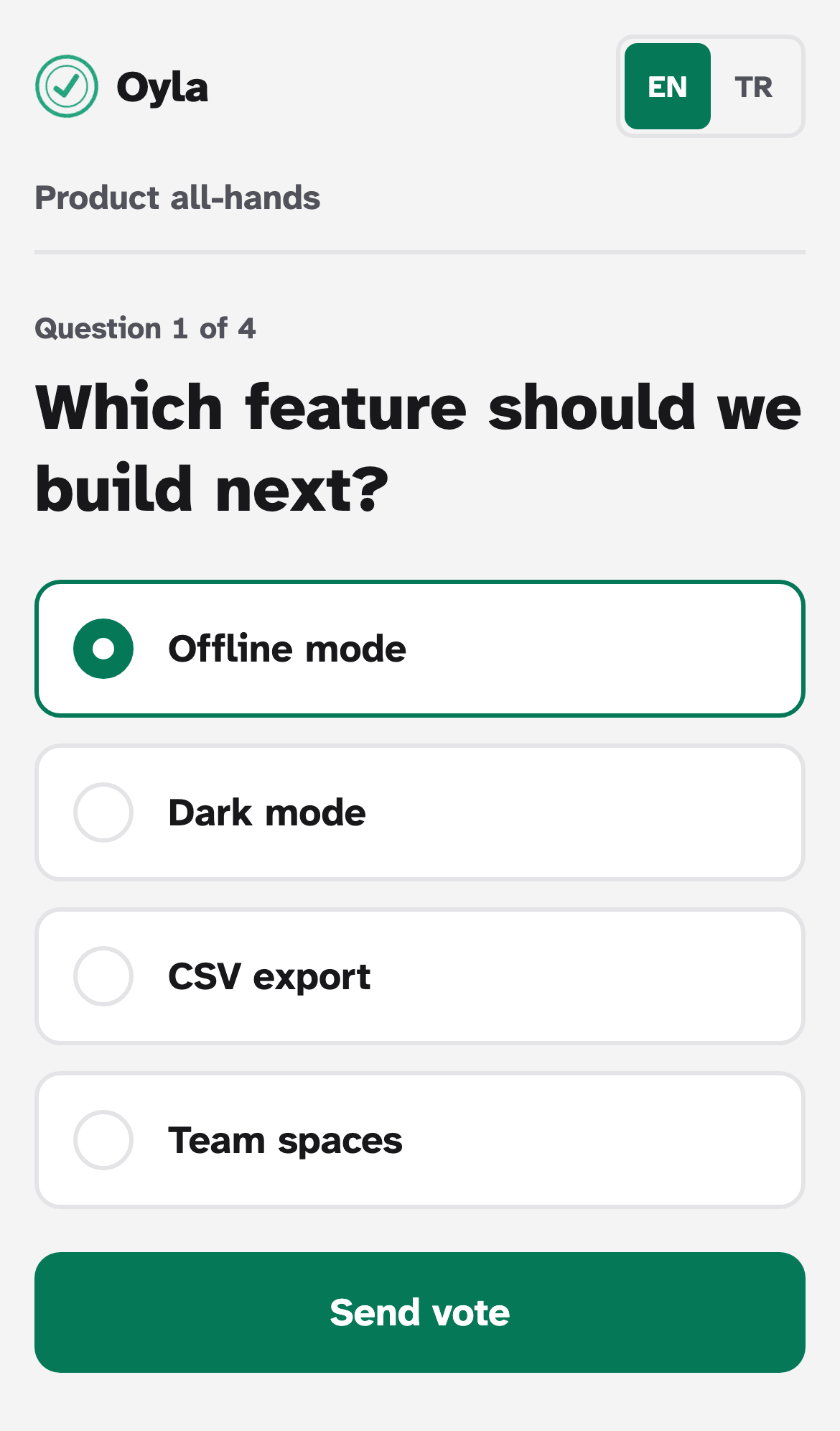
- Read the question. The line above it shows where you are, for example “Question 1 of 4”.
- Pick or type your answer.
- Tap the send button: Send vote for multiple choice, Send for word clouds and open questions, Send rating for scales.
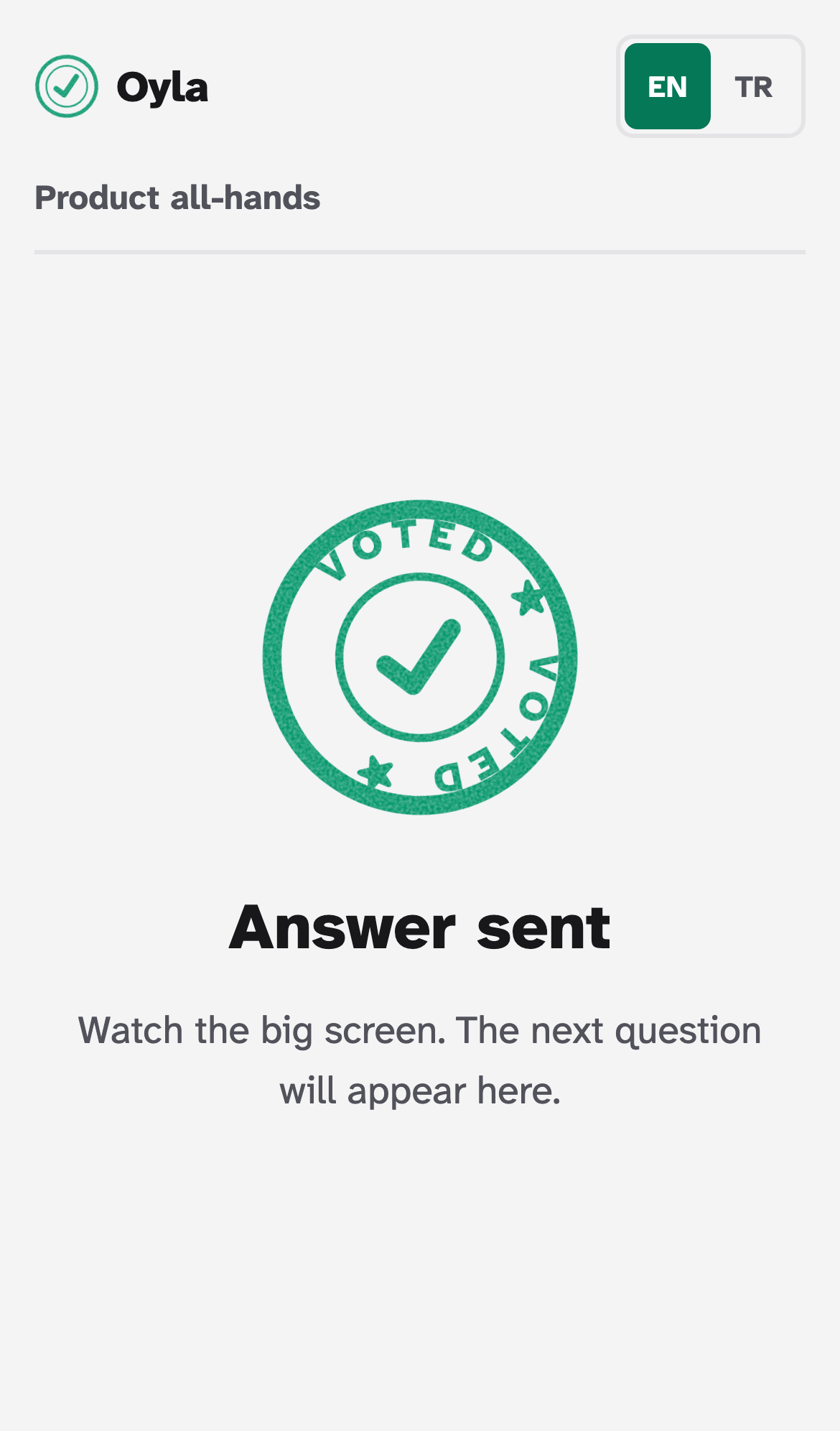
The phone then shows Answer sent and asks you to watch the big screen. Answers can’t be edited after sending. Results appear on the presenter screen, not on phones.
Word clouds and open questions can allow more than one answer per person. In that case the thanks screen has a button such as Add another answer (2 left).
Messages you might see
Section titled “Messages you might see”| Message | What it means |
|---|---|
| The presenter moved on to another question. | You sent an answer just after the presenter switched questions. The new question is on your screen now. |
| You’ve already answered this question. | You’ve used all the answers this question allows. |
| This question isn’t taking more answers. | The question has reached 2,000 answers, the limit per question. |
| Too many requests. Wait a moment and try again. | Answers or join attempts came in too fast from your phone. |
| Connection lost. Reconnecting… | The phone lost its connection. It reconnects on its own and shows the current question again. |
| This presentation has ended | The presenter deleted the presentation. |
Your answers and reconnecting
Section titled “Your answers and reconnecting”The first time a browser joins, Oyla stores a random participant id in its local storage. The id lets the server tell answers apart, and it is why a phone that locks, reloads or loses its connection comes back with its answers intact: you won’t be asked the same question twice.
Answers are anonymous: Oyla never asks for a name or an email address. Someone who clears their browser storage gets a new id and can answer again. That is a deliberate trade-off of having no accounts; see Security.
Language and colours
Section titled “Language and colours”The interface follows your browser language (English or Turkish). The EN / TR switch at the top of the page changes it, and the browser remembers your choice.
The colours come from the theme the presenter picked for the presentation and change with it. Light or dark mode follows your phone’s setting.